safe order to clean up phone storage without deleting important data
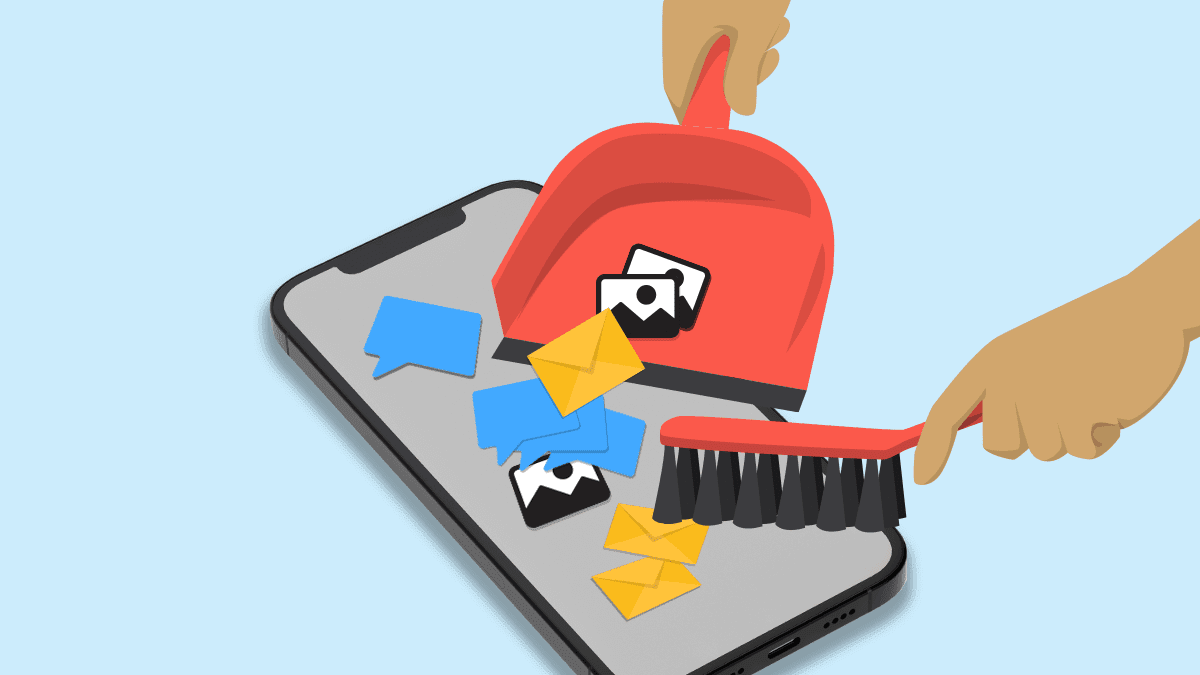
Here’s a safe, step‐by‐step order to clean up your phone’s storage without deleting important data:
First, open your phone’s settings and check exactly what is taking up your storage. Look at the breakdown (apps, photos, videos, system data, etc.) so you know where to focus your cleaning efforts[2][14].
Back up your important files such as photos, documents, and videos by either uploading them to a cloud service or transferring them to external storage. This extra step ensures that anything you remove later can be restored if needed[10][11].
Next, review your photos and videos. Delete duplicates, blurry shots, or screenshots that aren’t important. If you want to keep these memories without filling up your internal storage, use an “optimize storage” option or transfer them to external/cloud storage[2][13].
Then, move on to the files in your downloads folder. Delete any items you no longer need. These files often accumulate unnoticed and can be removed safely since they aren’t personal data[3][9].
After that, clear cached files and temporary data from your apps. Check within each app’s settings or use a built-in cleaner tool to clear cache. This will remove nonpersonal data while leaving your apps and saved files intact[3][10].
Then review your apps. Identify apps you rarely use—either offload them (which removes the app but keeps your personal data in storage so you can reinstall later) or uninstall them entirely if you do not plan to use them again[2][11].
If you’re comfortable with advanced options, use your phone’s built-in or hidden cleaning tools—for example, some Android devices let you access system logs or additional cache cleaners through secret menus. This can free up even more storage without affecting your important data[4].
Following this order keeps your essential information safe while gradually freeing up space. Each step targets specific areas so you can perform a clean-up without accidental loss of important files.
Get more accurate answers with Super Pandi, upload files, personalized discovery feed, save searches and contribute to the PandiPedia.
Let's look at alternatives:
- Modify the query.
- Start a new thread.
- Remove sources (if manually added).